
How to setting and troubleshoot for Revenue Integration
1) Ensure the terminal is switched on
2) Check the model is A920 (Type A to USB) or A920 plus (Type C to USB)
3) Cable that use for the terminal is provided by Bank (able to charge and send data)
4) Install the driver from TouchPOS or TouchFnB folder or from link attached 202511 Revenue Installer
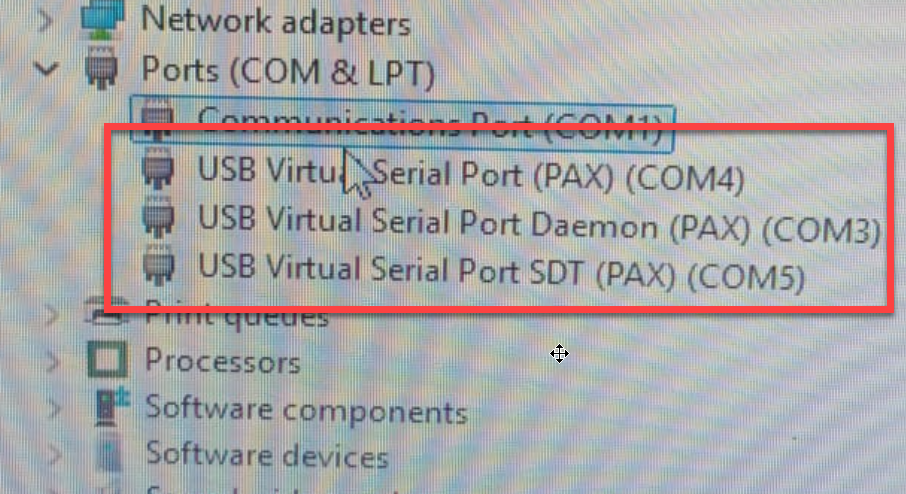
5) Check Device Manager will have 3 USB Virtual Serial Port (PAX) as per below
6) Login to the POS
7) Go to the Function -> System Setup -> Browse to Revenue page
8) Fill in the highest com port as stated in the picture (in this scenario, it's COM 4)
9) Select the correct BANK
10) Save and log out
11) Restart the terminal and POS
12) Test a payment whether is it able to show at the credit card terminal
Troubleshooting
If the device is not able to show any amount
1) Request user to provide the video on how they plug in the cable
2) Check whether is it standard cable
3) Try to plug in and out to another USB port
4) Ensure the USB is plugged to behind of the CPU instead of in front (insufficient power probably happened)
5) Use the tester as per attached lin (guide is provided how to use the tester in the powerpoint)
If above also failed and unable to show any record, may request Revenue to resend the integration command to the terminal with the TID and merchant name with issue provided.
Wait for further instruction by Revenue team.
If still failed using the tester, request Revenue to provide for the next action.